Common WordPress Errors and How to Fix Them is one of the most searched topics among website owners and developers because even a small issue can break an entire website. Whether you are a beginner or professional WordPress developer, errors like white screen, database connection failure, or plugin conflicts can happen anytime.
The good news is that most WordPress errors are easy to fix once you understand their causes.
In this complete 2026 guide, you’ll learn the most common WordPress problems and proven solutions.
Table of Contents
-
Why WordPress Errors Happen
-
Most Common WordPress Errors
-
Common WordPress Errors and How to Fix Them (Step-by-Step)
-
Prevention Tips
-
Recommended Tools
-
Final Thoughts
Why WordPress Errors Happen
Before learning Common WordPress Errors and How to Fix Them, it’s important to understand why errors occur.
Main reasons include:
-
Plugin conflicts
-
Theme issues
-
PHP memory limits
-
Server configuration problems
-
Incorrect updates
-
Database corruption
WordPress flexibility sometimes creates compatibility issues.
Learn WordPress troubleshooting basics here:
https://wordpress.org/support/article/debugging-in-wordpress/ (DoFollow external link)
12 Common WordPress Errors and How to Fix Them
1. White Screen of Death (WSOD)
Problem:
Website shows blank white page.
Fix:
-
Disable plugins via FTP
-
Switch to default theme
-
Increase memory limit
Add inside wp-config.php:
define('WP_MEMORY_LIMIT', '256M');2. Error Establishing Database Connection
Cause:
Incorrect database credentials.
Fix:
Check inside wp-config.php:
-
DB_NAME
-
DB_USER
-
DB_PASSWORD
-
DB_HOST
3. 500 Internal Server Error
One of the most frustrating Common WordPress Errors and How to Fix Them cases.
Solution:
-
Rename
.htaccess -
Re-save permalinks
-
Disable plugins
4. 404 Error After Permalink Change
Fix:
Go to:
Settings → Permalinks → Click Save Changes
No modification needed.
5. Memory Exhausted Error
Occurs when WordPress exceeds server memory.
Increase limit:
6. Plugin or Theme Update Failed
Fix:
-
Check file permissions
-
Disable firewall temporarily
-
Update manually via FTP
7. WordPress Stuck in Maintenance Mode
Delete this file from root directory:
Website will instantly return.
8. Login Page Redirect Loop
Solution:
-
Clear browser cookies
-
Disable caching plugin
-
Reset
.htaccess
9. Mixed Content SSL Error
Occurs after HTTPS migration.
Fix using plugins or update URLs:
Settings → General → Update site URLs.
Learn about SSL security:
https://letsencrypt.org (DoFollow external link)
10. Image Upload HTTP Error
Fix:
-
Increase PHP memory
-
Regenerate thumbnails
-
Check hosting limits
11. Syntax Error in WordPress
Usually caused by incorrect code edits.
Fix by:
-
Access FTP
-
Edit faulty file
-
Restore backup
12. Slow Website Performance
Performance issues are also part of Common WordPress Errors and How to Fix Them.
Solution:
-
Use caching plugins
-
Optimize images
-
Use CDN
Internal Guide:
https://yourdomain.com/best-caching-plugins-for-wordpress-2026
Recommended Tools to Fix WordPress Errors
| Tool | Purpose |
|---|---|
| Query Monitor | Debugging |
| WP Debug Mode | Error tracking |
| Health Check Plugin | Conflict testing |
| UpdraftPlus | Backup recovery |
Prevention Tips (Very Important)
To avoid Common WordPress Errors and How to Fix Them, follow these practices:
✅ Regular backups
✅ Update plugins weekly
✅ Avoid nulled themes
✅ Use reliable hosting
✅ Install security plugin
✅ Test updates on staging site
Image Section
Image 1
Alt Text: Common WordPress Errors and How to Fix Them
Suggested:
-
WordPress error dashboard illustration
Image 2
Alt Text: Common WordPress Errors and How to Fix Them troubleshooting guide
Video Recommendation
Embed YouTube tutorial:
“Fix WordPress Errors Step by Step (2026)”
Videos increase user engagement and SEO dwell time.
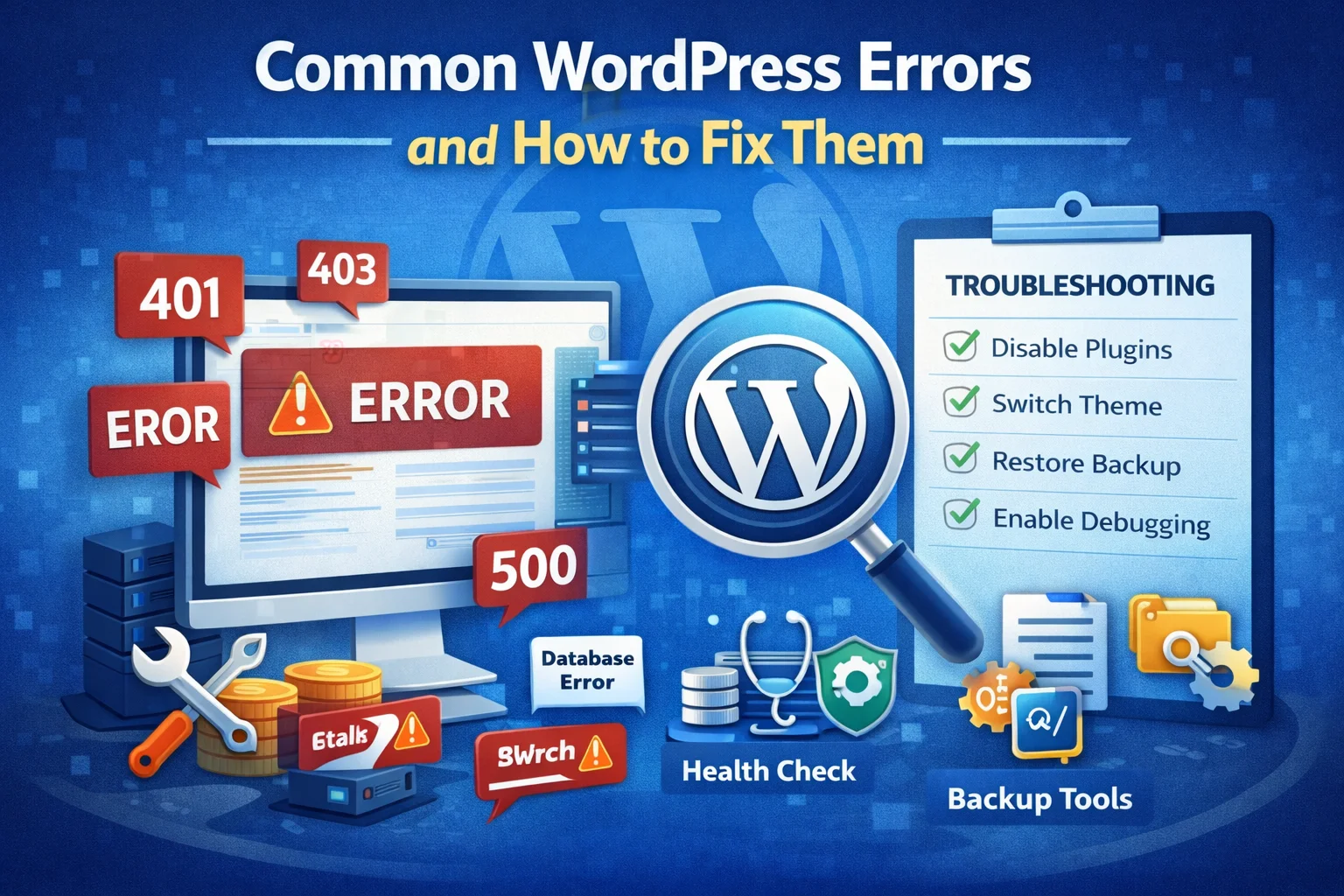
Quick Troubleshooting Checklist ✅
-
Disable plugins
-
Switch theme
-
Check hosting error logs
-
Enable debug mode
-
Restore backup
Final Thoughts
Understanding Common WordPress Errors and How to Fix Them helps you maintain website stability, improve uptime, and prevent revenue loss.
Every WordPress developer eventually faces these issues, but with the right troubleshooting process, almost every error can be resolved quickly.
Mastering these fixes will make you more confident managing WordPress websites in 2026 and beyond.